
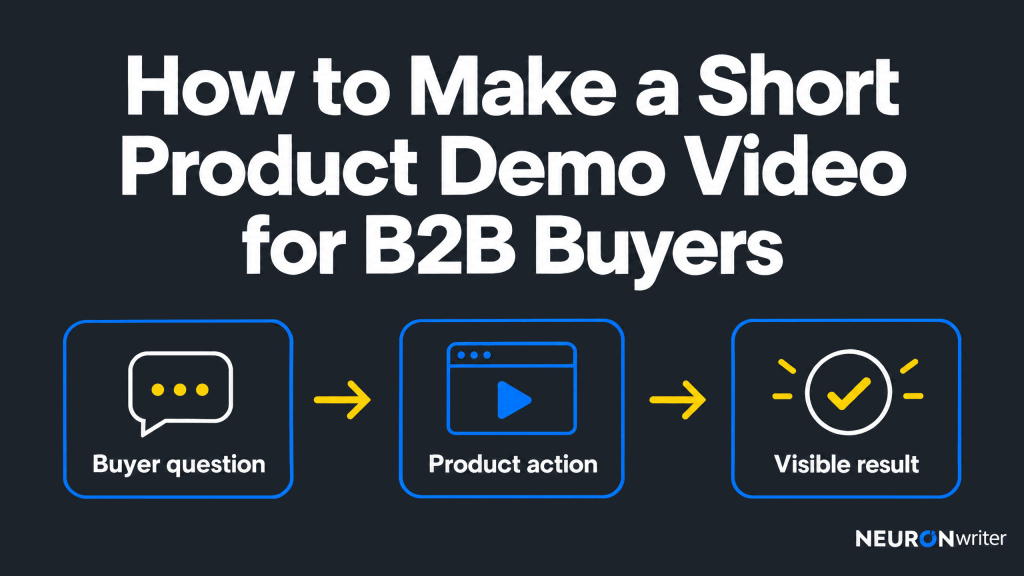
How to Make a Short Product Demo Video for B2B Buyers
Semantic Summary
Idea: A short product demo video should answer one buyer question by showing a real product action and its visible result, not touring every feature.
Challenge: A polished recording can still confuse buyers if it hides setup, uses unrealistic data, makes unsupported claims, or ends before the outcome appears.
Summary: Choose a specific question, write a brief and compact script, record an accurate workflow, review accessibility and claims, then publish the clip where it helps someone decide what to do next.
Related Reads
- B2B Video Marketing in 2026: Why Text Is No Longer Enough
- Video Library Management: How to Build a Searchable B2B Video Library
- B2B Video Transcripts: How to Turn Spoken Expertise into Searchable Knowledge
To make a product demo video for a B2B buyer, start with one question and show the shortest honest route to an answer. Capture the product doing a real task, explain only what the viewer cannot infer from the screen, and let the result appear before offering a next step. This is a production guide for one clip, not a general B2B video marketing strategy.
| Buyer question | Product action | Visible result | Next step |
| “Can I see who approved this request?” | Open the request and show its approval history. | The record displays the approver and status. | Explore the approval workflow or ask about a more complex case. |
What Is a Short Product Demo Video?
A product demo video is a recording that shows a product performing a task so a prospective user can judge how it works. A short B2B demo narrows that task to one decision-relevant question. It may show a real interface, a physical product in use, or a process whose outcome can be seen. If the promised result never appears, the piece is closer to an advertisement than a demonstration.
“Short” is a constraint on scope, not a magical runtime. A simple action can be clear in under a minute; an unfamiliar workflow may need a few minutes. Show enough setup to make the result believable, but remove steps that do not change the buyer’s understanding.
Product demo vs. explainer video vs. live sales demo
An explainer video describes a problem and a proposed solution, often without showing the real product. A recorded product demonstration shows the product in action and can be watched without a meeting. A live sales demo is interactive: the presenter can ask about a buyer’s situation and change course. A recording cannot know a viewer’s answer, so it must choose one clearly labeled scenario.
For a buyer comparing whether a product supports a specific job, a screen recording with clear narration can be more useful than animation alone.
Use animation to clarify a hidden process, but do not let it imply the interface performs an action that has not been verified. An interactive demo, where a viewer clicks through a controlled experience, is another format; choose it when exploration matters more than showing a timed sequence.
Choose a format that can show the proof clearly
For a software demo, begin with an actual screen capture when the key action is visible and repeatable. A physical product may require a close-up of hands, an instrument, or the resulting output.
A hybrid cut can show both the interface and the person performing an offline task. Before choosing animation, ask what the viewer would need to see to believe the claim. If the answer is an actual product action, record it rather than replacing it with a stylized promise.
A short product launch video may create interest without teaching a workflow. A sales video may address a particular account’s context. This guide is about a reusable demonstration that helps a defined target audience judge a specific capability. That distinction makes the brief, production effort, and next step easier to choose.
Choose one buyer question and one honest outcome
Collect questions from sales conversations, customer support, trials, and the search queries behind relevant pages. Pick one question that a real product action can settle. “Can I restrict access by role?” is filmable; “Will this transform our business?” is not. A buyer may also ask about setup effort, permissions, integrations, or what happens when a process fails. One product demo should not claim to answer them all.
Write the outcome before writing the opening: “A reviewer receives a request and the manager can see its approval state.” Check that this outcome is available in the current product. If the workflow requires an administrator, a paid capability, or existing data, disclose that condition. It is better to show a narrower truthful result than an effortless-looking outcome that a new customer cannot reproduce.
How to Plan and Script a Product Demo Video
Write a small brief before you record. Decide whom the video serves, what they already know, which result you will show, where the clip will appear, and what they should do afterward. That prevents a quick demonstration from expanding into a general feature tour.
Write a one-page brief: audience, question, proof, placement, next step
- Audience: Name the role and situation, not just an industry. A first-time evaluator and an existing user need different context.
- Question: Quote or paraphrase the buyer’s actual concern. Avoid inventing a dramatic pain point.
- Proof: Identify the action and result that can be shown in the approved product version.
- Placement: Decide whether this is a product page, a relevant educational article, a follow-up message, or a customer-help page.
- Next step: Choose one action that follows logically: inspect a workflow guide, try the product, or request a tailored discussion.
Add an owner, recording date, product version, data-permission status, and review date. These fields are small but important: they tell the next editor which clip can still be trusted after the interface changes. A sales team should not have to guess whether the demonstration is current.
Use a compact script template with a clearly labeled fictional example
A useful demo script names the question, shows the action, points to the result, and offers a relevant next step. A scripted voiceover may help a presenter stay concise; it need not sound like a commercial. Here is an illustrative fictional example, not a claim about an actual company or product:
Question: “How can a team lead check who approved a request?”
Opening: “Here is a request waiting for approval. Let’s see what the lead can check.”
Action: “I open its history and select the latest approval entry.”
Result: “The record now shows the approver, time, and current status.”
Boundary and next step: “This example uses a preconfigured approval rule. If your team has more than one approval path, explore the setup guide.”
Put the action on screen when you say it. “The dashboard gives visibility” is too vague if the viewer never sees a record change or a status update. On-screen text should label the essential step, not repeat every sentence of narration. Keep one primary call to action; a different link may appear on the host page for viewers who want more detail.
A good product demo depends on both the video script and the shot list. In the sample, the first shot establishes the request, the second shows the approval history, and the final shot holds on the recorded status.
This is a better production instruction than “show the benefits of your product” because a reviewer can check each frame against a claim. For your first demo, rehearse once and remove narration that merely describes a click the viewer can already see.
Set runtime by the job, not a universal length rule
A clip is long enough when it establishes the scenario, shows the necessary steps, and gives the viewer time to recognize the outcome. Draft the shot list first, record an honest take, and then cut redundant navigation. Do not choose a universal 60-second target that forces you to skip a permission condition or conceal a loading state.
Place a compact demonstration near a buyer’s question; reserve a longer product walkthrough for someone who has chosen to evaluate the entire workflow.
If two unrelated buyer questions need two different outcomes, make two product demos with descriptive titles rather than stretching one video. Test the cut with someone who did not write the script: ask them what the product did, what setup was assumed, and what they would do next.
How to Record a Product Demo Video Step by Step
Record a real, approved path through the product and protect any information visible or spoken during capture. The recording method matters less than a readable screen, intelligible audio, and a result a viewer can verify.
1. Prepare safe sample data and the approved product version
Use a sanctioned demo account or environment. Replace names, email addresses, financial figures, tokens, and customer records with permitted example data before capture. Removing them during editing is riskier than never displaying them. Check notification banners, browser tabs, autocomplete, search histories, and audio from other applications as well as the main screen.
Verify that the feature, labels, permissions, and workflow match what a buyer can access today. If the demonstration uses a staged state, say so. A prepared sample record is fine; a fabricated outcome presented as a customer result is not. Obtain approval for any real customer quote, logo, footage, or proprietary dataset.
2. Capture one real workflow with readable screens and clear narration
Use screen recording for software, close-up footage for a physical action, or both if the viewer needs context. Check text size at the player dimensions where the video will actually appear, including a phone. Move the pointer deliberately, pause at the result, and avoid constant zooming that hides where the viewer is in the interface.
Record narration separately if talking while clicking produces mistakes, or narrate live if the workflow feels more natural that way. Use a quiet room and listen back for dropped words, uneven levels, and unclear labels. A webcam is optional: include a presenter when their explanation adds trust or context, not because every SaaS product demo video needs a talking head.
If you use AI to draft narration, generate a rough shot list, or clean audio, compare its suggestions against the actual capture. An AI-generated screen or voice can make a false workflow look convincing. Do not claim a button exists, a task takes a fixed number of seconds, or a result is guaranteed unless the recording and product owner support the claim. Keep confidential source footage out of unapproved services.
You can create product demo videos with a modest in-house process: one product owner prepares the safe account, a presenter records the action, and an editor checks the result and captions.
Specialized video editing can add polish, but a professional video treatment is unnecessary if it makes the interface harder to follow. Plan for review and version updates in the video production budget; software subscriptions and cameras are not the only costs.
3. Edit pauses and distractions without hiding a necessary step
Cut repeated clicks, dead air, irrelevant windows, and mistaken takes. Keep setup steps that affect the promise such as choosing a role or connecting a data source visible or state them plainly.
If the result takes time to appear, a clean edit can shorten waiting, but do not imply a real-time process is instantaneous. A simple “after processing” label is more honest than a jump cut that changes the product’s apparent behavior.
Add a short title or visual label for the buyer’s question, then show the product working. Make any close-up large enough to read without losing context.
Review the finished video from start to finish as a new viewer, not merely as a sequence of isolated good-looking shots. Ask whether the first seconds say what will be demonstrated and whether the last frame makes the outcome clear.
How to Check and Publish the Demo
Publication is a product-accuracy and accessibility review, not just a file upload. Check the final cut, captions, access permissions, host page, and measurement plan before sharing it with buyers.
Verify claims, permissions, captions, and essential visual context
Give the recording to someone who knows the current product and someone who understands the buyer’s question. Check every number, qualifier, permission, and result against the version shown. Get legal or customer approval for sensitive claims and third-party material where relevant. Do not present a composite scenario as a real customer case.
For prerecorded video with meaningful audio, provide accurate synchronized captions. The W3C accessibility guidance explains that automatic captions need checking; a misheard “not” can reverse an instruction.
If an important step is visible but never described in speech, add enough narration or an appropriate text alternative so a person who cannot see the screen can understand it. A separate, checked transcript may also help people read or revisit the demonstration, but captions and a transcript are not interchangeable.
Place the video where the buyer needs it
Choose the destination by the question. A product page may show what a feature does; a help page can walk an existing user through a task; an educational article can link to the demonstration when the reader is ready to inspect the product. The broader content-to-demo path explains how that invitation can fit without interrupting an earlier-stage reader.
Give the host page a clear title and description tied to the actual recording. Make the player visible, test on mobile and keyboard, and link to the approved version rather than an outdated export.
If organic video discovery matters, consult Google Search Central’s video guidance: a dedicated watch page has a video as its main purpose, while a blog post with a supporting embedded video is a different page type. An indexable watch page and valid thumbnail can make a video eligible for certain search features; they do not guarantee inclusion or ranking. Do not mark up a video that is not actually published.
Share a suitable cut in a follow-up message or a relevant community discussion when it answers a genuine question. Do not paste the same generic demo everywhere or imply that off-site mentions alone will produce AI citations. For several clips, use an approved video library with ownership and review status so buyers find the current version.
Run a five-point release check before sharing the first demo
A finished file is not necessarily a publishable demonstration. Ask a reviewer who was not present during recording to complete these five checks:
- Question: Can the viewer tell which buyer problem the short video answers without reading a long sales pitch?
- Proof: Does the action shown really produce the result claimed in the current product version?
- Clarity: Can someone follow the important screens and narration at the intended viewing size?
- Access: Are captions checked, permissions correct, and confidential sample data absent?
- Destination: Do the page title, description, player, and next-step link match this specific clip?
If the answer to any question is no, fix the recording or its surrounding page before you promote the demo. This check is especially valuable when a product marketing team repurposes a longer recording: a cropped clip may lose the setup that made the original outcome understandable.
Ask one uninvolved reviewer to describe the visible result without reading the brief. If they cannot, the demonstration needs a clearer proof shot, not a louder call to action.
Measure useful viewing and next-step signals; refresh after product changes
Decide what success means before publishing. Track plays or qualified reach where available, whether viewers reach the proof moment, and whether relevant viewers take the next step.
A low completion rate may indicate the opening promised a different answer; a high play count alone does not prove a buying decision. Segment by page and audience rather than comparing a cold homepage visitor with a prospect who requested a detailed follow-up.
For example, if a buyer visits an approval-feature page and watches through to the displayed status, the clip probably delivered its immediate answer even if that person does not book a demo. If viewers abandon before the action begins, revise the opening or placement. Do not infer the same conclusion from a social teaser, where people may only watch a few seconds of video content before moving on.
For a more careful test, compare similar placements and buyer stages before and after adding the clip, while noting other changes such as traffic source or page design. Treat assisted pipeline observations as clues, not proof that the video caused a sale. Ask sales and support teams which questions remain unanswered. If the product screen, entitlement, or result changes, review or retire the recording; update its caption text, description, and link together.
How Contadu Supports the Demo Brief and Review
Use Contadu to organize the written research and editorial work around a video, not to pretend it verifies the footage. Its Content Strategy features include a Content Plan, Topical Maps, and Keyword Clustering, which can help identify a cluster of buyer questions. Confirm the actual question through conversations or support evidence before you script a demo.
Content Designer supports an editable content structure and Extract Facts from chosen sources, useful for an accompanying page, demo brief, or claim checklist. Its AI Profile can supply project context such as personas and brand voice. A human editor must still verify that each feature and claim matches the current product and recording; neither a draft nor a content score is proof that a demonstration is accurate.
Team Management supports task owners, deadlines, statuses, and a content calendar. Assign the product owner to check the workflow, an editor to review the words, and an accessibility reviewer to inspect captions and visual-only steps. Keep the approved clip, written page, and next review date together. This work is distinct from recording or hosting the video itself.
FAQ
How long should a B2B product demo video be?
Use the shortest runtime that shows the buyer’s question, the necessary product action, and a believable result. A simple task may take under a minute; a workflow with prerequisites may take longer. If removing a step would mislead the buyer, keep it or say clearly what happened off screen.
Can I make a product demo video without a video team?
Yes, if you can capture a readable product workflow, record intelligible audio, and secure a product-accuracy review. A basic screen recorder and editor may be enough for a first clip. Budget time for script, permission checks, captions, and maintenance; polished effects are not a substitute for those tasks.
What should a short demo script include?
Name the buyer’s question, show a real action, identify the result, disclose an important condition, and give one relevant next step. A shot list beside the spoken script helps align narration with the screen. Do not turn the opening into a list of all available features.
Is screen recording enough for a SaaS product demo?
Often it is, when the task can be understood from the interface and a concise voiceover or labels. Check that text remains legible on a small display and that confidential data is absent. If a backend action is invisible, explain the prerequisite and show a real outcome rather than inventing an animated one.
Can AI help create a demo without inventing product behavior?
AI can suggest a script outline, help clean narration, or produce draft captions, but its output requires human review against the current product. Do not use generated screens or unverified claims as evidence of a real feature. Confirm processing permissions before sending recordings or customer data to any external service.
What drives the cost of a product demo video?
Cost depends on the complexity of the workflow, recording and editing time, number of versions, voice or language needs, accessibility work, approvals, and future updates. A short in-house screen recording can require little equipment yet substantial review. Estimate the work from a shot list instead of borrowing an agency price or a universal cost per minute.
For a first demo, list the people needed for product setup, capture, video editing, captions, and approval; estimate their time separately. A reusable template may reduce later production work, but a changed feature still needs a new accuracy check. This is more useful than comparing arbitrary video costs across unrelated projects.
How do I know whether a product demo video helped buyers?
Check whether the right audience reaches the proof moment and then takes a relevant next step; compare by placement and buyer stage. Ask buyers and sales colleagues whether the clip answered the specific question. Treat views and assisted-deal data as signals, not conclusive proof of causation, and revise the demo when its result no longer matches the product.