

Video Library Management: How to Build a Searchable B2B Video Library
Semantic Summary
Idea: Video library management makes recordings useful by giving each one a clear purpose, searchable description, approved version, and owner.
Challenge: Demos, webinars, and training videos often sit in scattered folders with unclear names. People cannot tell which recording answers their question, whether it is current, or whether they can share it.
Summary: Build a small catalog around real audience tasks. Add consistent categories and metadata, provide useful transcript navigation, control access, and review the collection whenever the underlying information changes.
Related Reads
- Structured Data for Video Content: A Practical Video Schema Markup Guide
- How to Repurpose Webinar Content into High-Converting Written Assets
- Help Center SEO: How to Write Documentation That Helps Users Succeed
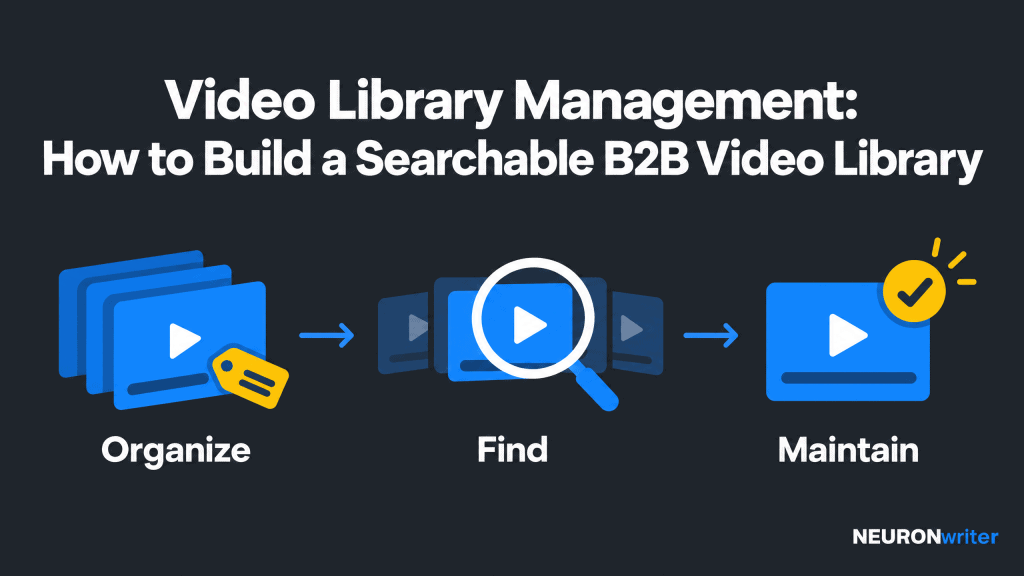
A searchable video library should help someone find an approved answer, not simply confirm that a recording exists. Start with the questions your buyers, customers, and colleagues need answered. Then organize the collection so the right material is easy to recognize and use.
| Priority | Reader task | Publishing check |
| Organize | Understand which recording addresses the problem. | A clear title, audience, topic, and approved status. |
| Find | Locate the relevant video or section. | Searchable descriptions, useful filters, and checked chapter links. |
| Maintain | Trust the recording and share it appropriately. | A named owner, review date, current version, and correct permissions. |
What Is Video Library Management?
Video library management is the process of organizing, describing, controlling, and maintaining a collection of recordings. It covers the whole journey from upload to approved use and eventual retirement.
A library can contain product demonstrations, onboarding sessions, expert interviews, customer education, and marketing campaigns. Its structure should tell users what a recording covers, who it is for, and what they can do with it.
Separate storage, the catalog, and the viewing experience
Storage holds the video files. The catalog holds their descriptions and status. The viewing experience provides playback and navigation. These functions may sit in one management system or several connected systems.
Cloud storage or a hard drive can hold recordings, but neither automatically creates a useful audience-facing collection. Likewise, a digital asset management system may organize images and documents alongside video without offering the transcript search your team needs. Check actual capabilities rather than assuming every asset management product handles the same tasks.
Define the audience before choosing the structure
Public video libraries help prospects evaluate a workflow. Customer libraries help users complete tasks. Internal collections help employees find reusable material. Video editors need source footage and editable projects; a buyer usually needs the approved demonstration, not the production folder.
Keep these experiences separate where their requirements differ. One shared source of truth can support several audience views without exposing drafts or duplicating every file.
Start With a Video Content Inventory
Audit what already exists before building a new library or buying more storage. Record the location, purpose, condition, and owner of each asset in the first collection you plan to improve.
Choose a manageable starting group, such as demonstrations for one product area. A focused pilot reveals naming, search, and review problems without requiring a company-wide migration.
- Identify the original recording, approved export, and current watch-page URL.
- Check whether the content still reflects the product or process.
- Record its intended audience, language, and permitted use.
- Mark duplicate exports, missing transcripts, broken links, and unanswered ownership questions.
- Decide whether to keep, revise, restrict, or archive it.
Do not judge recordings only by production quality. A plain screen recording may answer an important question; a polished campaign video may no longer be accurate. Prioritize usefulness and reliability.
Organize Videos Around Tasks, Then Add Consistent Tags
Use categories that reflect how people look for answers, not only how your team produces content. “Set up your workspace” is more useful to a new customer than “Product team recordings.”
Build a simple category structure
Start with a few recognizable areas: getting started, common workflows, troubleshooting, and advanced use. Add audience or language filters only when they help people narrow the collection.
Avoid deep folder trees that force users to guess several levels of structure. If a video belongs to two topics, reference the same approved record from both rather than creating independent copies.
Use a controlled tag list
A controlled list means contributors choose agreed labels rather than inventing a new spelling at every upload. For example, use “onboarding” consistently instead of mixing it with “new-user setup” and “activation” as interchangeable categories.
You can still support everyday search wording. Map synonyms such as “invite a colleague” and “add a team member” to the same topic when your search system allows it. Test the phrases users actually say.
Do not tag videos with every feature mentioned in passing. Distinguish the main topic from secondary references so a result about permissions does not appear equally relevant to every product workflow.
Give filenames and public titles different jobs
A filename helps the production team keep track of versions. A public title helps the viewer decide whether to watch. Use a repeatable internal convention, such as demo_invite-team_en_2026-11_v2.mp4, while the visible title reads “Invite Your Team and Set Their Permissions.”
The filename is an illustrative pattern, not a claim about an existing recording. Avoid titles such as “Final demo” or “Webinar replay” without a clear subject.
Add Metadata That Makes Each Recording Findable
Metadata is the information describing a recording, such as its topic, audience, language, and status. Require a small set of meaningful fields before an asset enters the approved collection.
| Field | What to record | Why it matters |
| Title and description | The question answered and what the viewer will see. | Helps someone recognize a relevant result. |
| Topic and audience | Primary workflow, intended viewer, and language. | Supports browsing and focused search. |
| Asset ID and location | A stable identifier, source location, and approved viewing link. | Connects related exports without confusing versions. |
| Status and rights | Draft, approved, restricted, or archived; permitted uses. | Prevents inappropriate distribution. |
| Owner and review date | Who checks accuracy and when the next review is due. | Keeps maintenance accountable. |
| Duration and navigation | Runtime, transcript availability, and useful chapters. | Shows the time commitment and route to an answer. |
Write descriptions in plain language. Explain the starting situation, the action shown, and any important limitation. “Learn more about collaboration” is vague. “See how an administrator invites colleagues and assigns editing access” helps a viewer make a decision.
Use a representative thumbnail, not an unrelated promotional image. Include enough information in text that viewers do not have to interpret the thumbnail to understand the result.
Make Search Work Beyond the Filename
Useful search combines titles and descriptions with filters and, where supported, the words spoken in the recording. A growing video library needs more than a keyword match against export names.
Use transcripts and chapters thoughtfully
A transcript lets someone read the spoken explanation. Chapters divide a longer recording into meaningful sections. An interactive transcript can link text to a moment in the video, but that behavior depends on player support.
Check product terms, names, numbers, and instructions before publishing automatically generated text. For a screen demonstration, include important visual information that the speaker does not say aloud. W3C distinguishes a basic transcript from a descriptive transcript that also explains necessary visual information.
Put the transcript or a clear link near the player. Use headings and timestamps where they help navigation; do not turn every caption line into a separate paragraph. Captions and transcripts serve related but different needs, so providing one does not automatically replace the other.
Treat AI search as a capability to test
Artificial intelligence (AI) may help generate tags, transcribe speech, or retrieve scenes. Those features are not interchangeable. A system that searches spoken words may miss a silent screen action; a system that recognizes objects may not understand the business task.
Do not assume an advertised tool “analyzes every frame” or correctly identifies every relevant moment. Ask what is indexed, which languages work, and how users inspect the original evidence. Keep AI suggestions editable and require human checks for instructions, rights, and approval status.
Create a small search acceptance test
Ask team members who did not organize the collection to find the videos they need. Use realistic requests: “How do I add a colleague?”, “Which demonstration is approved for prospects?”, and “Where is the explanation of restricted access?”
Record whether the correct result appears, whether its description is clear, and whether the relevant moment opens. A search result should not expose restricted titles, snippets, or previews to an unauthorized viewer.
Build an Upload, Review, and Sharing Workflow
Make approval a required step between a new upload and general distribution. Centralize the approved record even when production files remain in a separate workspace.
- Collect: obtain the recording, contributor details, purpose, and permitted use.
- Describe: add the agreed fields, relevant tags, transcript, and navigation.
- Review: check factual accuracy, confidential information, playback, and accessibility.
- Approve: assign status, audience access, and a maintenance owner.
- Distribute: publish the approved link and connect it to relevant resources.
If contributors use an upload link, send files to a review queue rather than the public collection. Every collaborator should know who approves content and what must be checked.
Separate viewing, editing, and sharing permission
A viewer may need to watch without downloading. An editor may need to replace a file without changing access rules. A partner may need only a selected customer-facing playlist. Set permission according to the actual task.
For multi-client work, separate confidential material and test client accounts directly. Do not assume a label or hidden navigation item enforces security. Review share links, inherited permissions, and access after people leave the team.
Links can expire where the system supports it, but expiration does not recall a file someone already downloaded. Digital rights management (DRM) can restrict some uses in supported environments; it is not a guarantee against copying. Match controls to the sensitivity of the content.
Keep feedback attached to the correct version
Capture comments against the reviewed export, ideally with timestamps. A real-time chat message about “the latest cut” becomes ambiguous once a different video version is uploaded. Mark which revision received approval and which clips were derived from it.
This collaborative workflow should streamline handoffs between video production, video editing, and publishing—not give everyone unrestricted control.
Choose Video Management Software by Testing Real Requirements
Choose the simplest setup that passes your retrieval, playback, access, and maintenance tests. More features do not compensate for inconsistent records.
A small collection may work with existing storage, a maintained catalog, and a website template. Large video libraries or frequent multi-team collaboration may justify a dedicated video asset management system.
- Search: can users combine topic, audience, status, and transcript queries?
- Playback: can they preview and navigate recordings on the devices they use?
- Access: are restrictions enforced on the page, player, files, and search results?
- Versions: can the team update an approved recording without leaving old links circulating?
- Export: can you retrieve files, descriptions, transcripts, and identifiers if you move?
- Cost: what changes with storage, processing, bandwidth, seats, and support?
Test large files and your actual recording formats. Do not assume that accepting an MP4 or MOV upload guarantees browser playback of every encoding inside it. Check whether older WMV or FLV files need conversion and retain originals under an appropriate archive policy.
Cloud-based systems can support distributed teams; locally stored collections may suit restricted production environments. Neither choice removes the need for backups and restore tests. An external hard drive that stores the only original is a single point of failure.
Check built-in functions before adding integrations. An application programming interface (API), meaning a way for systems to exchange data, may connect the catalog to your content management workflow. Confirm which fields and permissions travel with the record. Do not assume an integration with editing software also maintains website descriptions.
Connect Public Videos to Searchable Topic Pages
Your library’s internal search and Google’s video indexing are separate systems. A collection can be easy to browse without every video being eligible for Google’s video features.
Google defines a watch page as a page whose main purpose is showing one video. A category page with several equally prominent videos is not a watch page. For important public recordings, create a dedicated viewing page where it makes sense, with a unique title, description, stable URL, and accurate supporting information.
Link the collection to those pages through ordinary crawlable links, not only results that appear after someone types in a search box. Add relevant links to product education and written guidance. Use the video schema guide for implementation details rather than treating markup as a shortcut.
Keep private material behind genuine authentication and authorization. Excluding it from a sitemap or adding an indexing directive is not access control. Public pages, video thumbnails, and players also need technical checks; no schema or transcript guarantees a ranking or AI citation.
Maintain Video Libraries and Measure Whether They Help
A collection is successful when people find the right approved material and complete a useful next action. Views alone do not show whether the library solved their problem.
Track failed searches, repeated query wording, broken chapter links, permission problems, and reuse of outdated content. Where your systems support it and your privacy rules allow it, connect a search to a useful follow-up, such as opening a relevant guide or completing a setup task.
Compare similar audience tasks over time. Do not claim that a video caused a sale merely because the account watched it. Separate retrieval improvements from business attribution.
Review for change, not only on a calendar
Give recordings a review date based on how quickly the subject changes. Product releases, changed policies, expired rights, and superseded claims should trigger earlier checks. During review, inspect the export, transcript, description, chapters, and linked resources together.
Mark archived recordings clearly and remove them from normal approved results where appropriate. Preserve useful source footage under your retention policy. When you customize playlists or audience views, reference the current record rather than creating unmanaged copies.
How Contadu and NEURONwriter Support the Written Content
Use content intelligence to plan the library’s topic coverage and supporting pages—not as a substitute for video hosting or asset security. Keep the video record connected to its brief and review tasks.
Contadu’s Keyword Clustering and Topical Map can help group related audience queries and reveal gaps in your written coverage. Use that information to decide which video needs a supporting guide or which topic lacks a useful explanation. Its Tasks and Content Calendar support assigning people, deadlines, and statuses for that editorial work.
For substantive watch-page copy, NEURONwriter Content Score highlights semantic and structural recommendations. Use it to improve relevant descriptions and explanatory sections, not to pad a transcript. Auto-Insert Internal Links can suggest connections to related website resources; review the target and anchor before approving them.
Neither a written-content score nor a linking suggestion verifies the recording’s accuracy, rights, accessibility, or indexing status. Hosting, transcription, video storage, permissions, and in-video search require their own systems and checks.
Start with one useful collection, test it with its intended audience, and fix the recurring failures before expanding. Share approved viewing links in customer education and sales guidance so the library becomes part of the work rather than another place people must remember to visit.
FAQ
How do you organize a B2B video library?
Start with an inventory and choose categories based on audience tasks. Give each approved recording a clear title, consistent tags, owner, review date, and viewing link. Test whether a new user can locate a relevant answer without knowing your internal naming system.
What metadata should a video catalog include?
Include the title, description, primary topic, audience, language, asset identifier, location, status, and rights. Add the owner, review date, duration, and transcript or chapter information. Require the fields your team genuinely uses instead of collecting dozens that remain empty.
Does a transcript automatically make a video searchable?
No. The search system must actually index the transcript and enforce the recording’s access rules. Check the text for errors, test real queries, and confirm whether a result opens the relevant moment. A transcript file stored elsewhere may provide no benefit to library search.
Can you manage a video library without dedicated software?
Yes, a small collection can use existing storage and a maintained catalog with clear ownership. Dedicated management software becomes more useful when versions, permissions, transcript search, or collaboration exceed what that setup can reliably support. Test the workflow before committing to a more complex system.
How can teams securely share videos with clients?
Share only approved records through access controls appropriate to the material. Test what the client can view, download, and find through search, including previews and transcripts. Restricted links help only when the underlying files and player are protected too.
Should every recording have a public watch page?
No. Internal meetings, confidential training, and drafts may belong in a restricted collection. Important public videos can have dedicated watch pages linked from the library. A crawlable page is part of eligibility, not a guarantee that Google will index the video or display a video result.
How often should video libraries be reviewed?
Set a review schedule according to how quickly each topic changes, then add checks after product, policy, or rights changes. Inspect the recording and its descriptions, transcripts, chapters, and links as one package. Archive or revise outdated material so viewers do not mistake it for current guidance.

