
B2B Video Transcripts: How to Turn Spoken Expertise into Searchable Knowledge
Semantic Summary
Idea: A video transcript gives buyers and customers a readable route to the expertise in a recording, including what was said and, when needed, what happened on screen.
Challenge: Automatic speech-to-text can mishear names, numbers, and product instructions. A raw text dump may leave out visual steps, bury answers, or misrepresent the speaker.
Summary: Transcribe the recording, check it against the source, add essential visual context and clear navigation, then publish it where viewers can find it. Keep captions and other video-accessibility needs separate from the transcript.
Related Reads
- Video Library Management: How to Build a Searchable B2B Video Library
- Structured Data for Video Content: A Practical Video Schema Markup Guide
- How to Repurpose Webinar Content into High-Converting Written Assets
To write a useful B2B video transcript, start with the recording, not a keyword list. Capture its speech, verify details that matter, explain important silent actions, and organize the result so someone can use it without replaying the whole video. The transcript should represent the video faithfully; it is not a disguised blog post.
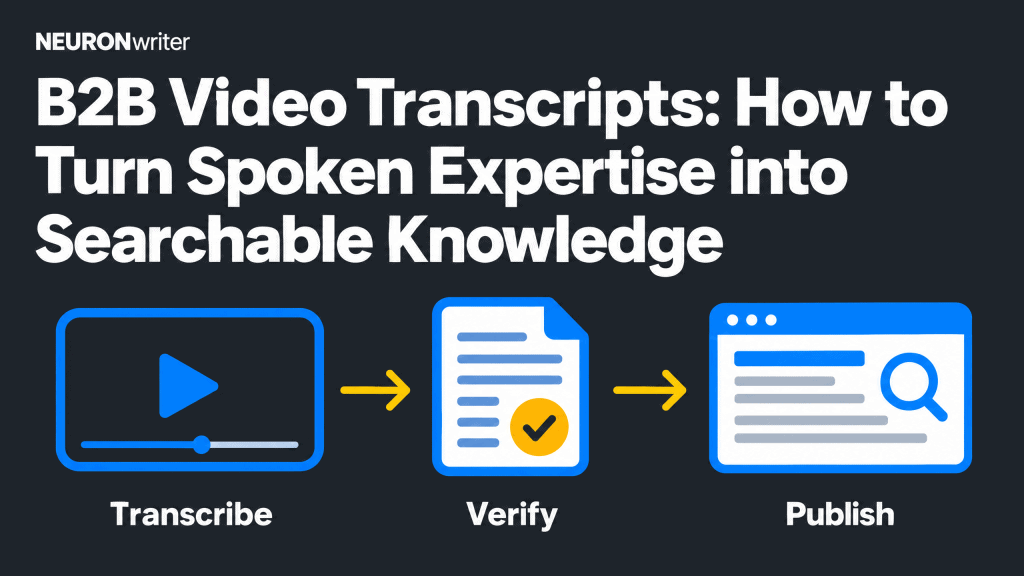
| Stage | Editorial check | Reader benefit |
| Transcribe | Capture speech and meaningful sounds from the correct recording. | A complete text starting point. |
| Verify | Check speakers, names, numbers, instructions, and essential on-screen actions. | A faithful account of what happened. |
| Publish | Add headings and a visible transcript link or text near the player. | An answer that is easier to find, read, and revisit. |
What Is a Video Transcript, and What Should It Include?
A video transcript is a text version of information conveyed in a recording. A basic transcript covers speech and meaningful non-speech audio; a descriptive transcript also explains visual information needed to understand the video. For a B2B product demonstration, that may include a menu selection or an on-screen warning the presenter never says aloud.
The W3C transcript guidance recommends thinking about what a person would miss if they could not hear or see the media. Use that question to decide which details belong in the written version. Not every cursor movement or decorative chart needs a description; a silent action that changes the outcome does.
Transcript vs. captions, subtitles, and a rewritten article
Captions are synchronized text within the video player; a transcript is a readable text resource. Captions convey spoken words and important sounds at the time they occur. In some regions, “subtitles” means the same thing; the W3C uses “subtitles” for translated speech. Transcripts and captions can share a checked source text, but one does not automatically replace the other.
A summary tells readers what the recording covers. A rewritten article develops an idea for a separate purpose. Neither is a substitute for a transcript when someone needs to inspect the speaker’s actual explanation. Label each format honestly. If you produce a new article from a webinar, the webinar repurposing guide covers that different editorial job.
Do not confuse a caption file with a polished transcript. Closed captions synchronize text with the video; a text file exported from those captions may still contain line breaks every few words and no explanation of visual content. Combine related lines into paragraphs and then check whether a reader who cannot access the video can understand the important actions. That is why transcripts and captions are complementary text alternatives, not interchangeable publishing boxes to tick.
Basic and descriptive transcripts: include important on-screen information
A basic text transcript works for a talking-head explanation with no important visual-only information. For a screen walkthrough, it may not be enough. Imagine the speaker says, “Choose this option,” while the screen shows a permission setting that was not named. A reader needs the missing label and action to understand the instruction.
Add concise, factual notes such as [On screen: the administrator selects “Invite team member” under Settings.] Use brackets or a clearly separated visual column so readers know the note was added by the editor and was not spoken aloud. W3C distinguishes descriptive transcripts from basic ones for exactly this reason: they include essential visual information. Do not guess at controls or outcomes you cannot confirm from the recording.
How to Write a Video Transcript Step by Step
Use the same five-step workflow for a short demo, expert interview, or webinar excerpt: prepare, transcribe, check, describe, and organize. The amount of detail changes with the recording, but the standard of accuracy should not.
1. Prepare the recording, permissions, and terminology
Start with the final approved video file, not an early edit. Record its title, date, duration, language, speaker names, and owner. Confirm whether the audio contains confidential customer details, off-record comments, or unapproved claims before uploading it to any transcription software or external service.
Make a short reference list for product names, feature labels, acronyms, and known figures. When a speaker says “workspace role” but a rough transcript produces “work space roll,” the list helps an editor catch the error. Keep the source file and the published version linked so a future reviewer can compare them.
2. Create a rough transcription from the video or audio
Use a human transcriber, speech-recognition software, or existing captions to create an editable first pass. The choice depends on recording quality, sensitivity, available time, and the level of review needed. Automated video-to-text output saves typing but is not a finished transcript; human transcription also needs a final source check.
Work in the recording’s spoken language. If you need another language, make translation a separate reviewed version rather than silently replacing the original. Keep uncertain phrases marked for playback. A low-confidence guess about a price, deadline, or safety instruction should not become a polished false statement.
You can create transcripts by listening and typing, by using voice-to-text software, or by hiring a professional transcription service. Compare these approaches on confidentiality, review effort, language coverage, and how easily your editor can correct the output—not on a claimed universal accuracy percentage. If you upload a video or audio file to an external service, confirm that its processing terms match your permissions first. Export editable text for review; save the timed caption file separately if the player uses one.
For a quiet recording with one speaker, automatic transcription may provide a useful draft. For overlapping voices, technical vocabulary, or sensitive conversations, allow more human review. A transcription service may be appropriate when the team lacks time, but the content owner still needs to verify names, figures, and release status. Document who can see the source and who signs off the final version.
3. Check speakers, product terms, numbers, and meaningful sounds
Listen while reading the draft. Check the start, transitions, and every high-risk passage: quantities, dates, negations, named features, customer quotes, and instructions. Label speaker changes consistently. If the speaker is unknown, use a neutral label rather than assigning a name by guesswork.
Include non-speech audio when it changes meaning, such as an alert tone that signals an error. Omit irrelevant background music if it does not affect understanding. Do not silently “correct” a speaker’s factual mistake in a way that makes the transcript disagree with the video. Instead, use a visible editor’s note or update the recording and transcript together after approval.
The W3C guidance on captions warns that even one misheard word such as “not” can reverse a spoken instruction. Apply that same check to transcripts, especially where a customer may act on the text.
4. Add essential visual descriptions without inventing details
Review the video with the audio muted. What must a reader know to understand the outcome? Note a selected option, a resulting status, a meaningful chart label, or a visual-only warning. Name the information rather than describing every pixel. For example, “[On screen: access changes from Viewer to Editor]” is more useful than “the cursor moves to the right.”
Where audio descriptions already exist, they can inform a descriptive video transcript. Where they do not, a human reviewer should confirm visual notes against the source. Make the added text distinguishable from dialogue and avoid attributing the note to a speaker.
5. Organize the text with headings, paragraphs, and useful timestamps
Group caption lines into logical paragraphs. Add a heading when the video changes task, and keep speaker labels easy to scan. Use timestamps for long sections or moments people may want to revisit; timestamping every sentence can make the page difficult to read. If timestamps link into the player, test that each link opens the right point.
Here is a short illustrative example from a fictional demonstration. It shows format, not a claim about an actual product:
02:10 — Invite a colleague
Presenter: “Open the team settings. Enter your colleague’s email address, then choose their access level before you send the invite.”
[On screen: the access menu shows Viewer and Editor. The presenter selects Viewer.]
Presenter: “They can now review the draft without changing it.”
The spoken instructions remain intact. The on-screen note supplies the missing visual detail and is clearly marked as an editorial addition. If the current product no longer has that option, do not publish the old walkthrough as current guidance.
For longer recordings, choose sections by the questions a viewer would ask: “Who can change permissions?” is clearer than “Part two.” Keep the section title outside the dialogue unless the speaker actually used those words. Visual information belongs within the transcript only when it clarifies an action or result; an editor does not need to narrate every decorative element inside the video.
How to Edit a Transcript Without Changing the Speaker’s Meaning
Decide whether the transcript is verbatim or lightly edited before cleaning it. A verbatim version keeps hesitations and repetitions when they matter, such as a research interview or a formal record. A lightly edited version may remove filler and false starts to help someone read, while retaining the speaker’s meaning and every substantive caveat.
Verbatim versus lightly edited: choose a policy before editing
Do not turn uncertain language into certainty. “This may work for smaller teams” must not become “This works for all teams.” Keep qualifiers, numbers, and conditions. If a sentence is impossible to follow because of a long spoken digression, break it into readable paragraphs. A transcript remains a record of speech, not an opportunity to rewrite the speaker’s argument.
Choose a house style for contractions, acronyms, speaker labels, unintelligible audio, and necessary sounds. A consistent policy helps another editor review the transcript without making arbitrary changes. If the recording is evidence-sensitive, retain a source copy and an edit trail.
Mark clarifications and verify claims before publication
Put any editor-supplied clarification in brackets or a separate note. Link a cited resource in a short “Resources mentioned” area rather than inserting an unspoken endorsement into dialogue. Confirm that public quotes and names have permission where needed. A speaker’s offhand estimate is not automatically a researched statistic.
Check product details against current documentation. If the recording is outdated, a dated note can tell readers when it was recorded and where to find current instructions. For a major change in the workflow, replace or retire the video rather than relying on a footnote to fix a misleading demonstration.
Before approval, have a second reviewer test one question that depends on the video and audio together. Can they answer it from the edited transcript alone? If not, identify whether the missing piece is dialogue, on-screen text, an alert, or a context note. Add only the information confirmed by the recording, then repeat the check.
Where to Publish a Transcript for Readers and Search
Put the transcript on the same page as an important video when possible, or place a clearly labeled link next to the player. W3C recommends making the text easy to discover from the media; for media hosted on your site, the same page is usually best. A separate transcript page can be appropriate for media hosted elsewhere, provided the link is obvious.
Place the transcript or a clear link near the recording
Use the heading “Transcript” near the player, not an ambiguous download label. Publish readable text in the web page when your editorial and access rules permit it. If a separate file is necessary, make sure it can be read by the intended audience and is maintained with the video. Do not expose a transcript of a restricted customer session on a public page.
A transcript can improve usability for someone who cannot access the video, prefers reading, has limited bandwidth, or wants a specific instruction. Captions remain a separate requirement for prerecorded video with meaningful audio under the W3C guidance; a text transcript alone is not a reason to skip them.
Test the experience with a colleague who has not seen the recording. Ask them to find one answer in the text, locate the corresponding video moment, and explain the on-screen result. If they cannot do those tasks, improve the section heading, speaker label, visual note, or timestamp. This checks whether the transcript makes the video content more accessible in practice, not merely whether a file exists.
Use a specific page title, descriptive intro, and relevant internal links
Give the video page a title that names the task and a short introduction explaining what the viewer will learn. The transcript should reflect the recording; do not sprinkle search terms into speech the presenter never used. A useful page might link to current product documentation or the next step in the same workflow.
A practical page can offer a concise answer above the full transcript, followed by the checked text and any relevant resources. This helps a reader find specific information without pretending the summary is a word-for-word record. Do not create a separate near-identical transcript page for every embed simply to target more search results. Decide which page owns the full text, link to it from other relevant pages, and keep the answer consistent.
For search engine optimization (SEO), publishing helpful text gives search systems and readers another way to understand a video page. It does not guarantee that the page, the video, or a passage will rank or appear in an AI answer. Google’s video guidance says that even an indexed watch page does not guarantee video indexing. Check the public page’s indexability, accurate description, and working player; keep a private page private.
Make the public transcript searchable as ordinary text rather than only an image of written words. Search engines can process the surrounding text, but your primary test is human: can someone who prefers reading over watching understand the point, verify the source, and follow a relevant next link? For a hosted video page, keep the visible page title and description specific to that recording. Review what the page shows in a browser, including on a phone, before assuming the transcript is discoverable.
Video structured data is a separate technical step, not a substitute for the readable transcript. Follow the Contadu video schema guide if your team implements it. For a growing collection, use the video library management guide to plan how people find and maintain the recordings; this article is about the text of one recording.
A Copyable Video Transcript Template and Pre-Publish Checklist
Use a small repeatable template rather than publishing an unstructured wall of text. The fields below keep the source, editorial decisions, and reader navigation in one place. Adapt them to the recording; do not add headings or timestamps that have no useful role.
Template: title, context, speakers, timed sections, visual notes, resources
Video title: [Specific task or question answered]
Recorded / reviewed: [Dates] Language: [Language] Speakers: [Names and roles, with approval]
About this recording: [One or two sentences describing the viewer’s task and any current limitation]
Transcript
[00:00] Section heading: [Speaker]: “[Checked spoken content in readable paragraphs.]”
[On screen: concise description of a meaningful visual action, if needed.]
[04:25] Next section: [Speaker]: “[Checked spoken content.]”
Resources mentioned: [Checked links, labeled as editorial additions]
Editorial note: [Clarifications or change notice, visibly separate from speech]
For a short interview with no useful visual-only information, omit the visual notes. For a long screen recording, add a few navigable sections. Do not mislabel an edited summary as the “full transcript.”
Final QA: accuracy, accessibility, permissions, links, current product facts
- Source: Is this the approved final video, with the right language and speakers?
- Accuracy: Were names, negations, numbers, instructions, and uncertain passages checked by listening?
- Coverage: Are meaningful sounds and visual-only instructions represented without unnecessary descriptions?
- Presentation: Are speaker labels, headings, paragraphs, and any timestamps consistent and useful?
- Accessibility: Are captions checked separately, and can readers find the transcript near the recording?
- Rights and freshness: Are customer details approved, and do the product instructions still match today’s experience?
- Publishing: Do links work, does the correct video load, and can the intended audience read the text?
Give a named owner responsibility for updates when the product or process changes. An outdated transcript is especially risky when a precise instruction looks authoritative.
Track search queries and reader feedback for the page, but judge usefulness by whether people find the right answer, not by an assumed ranking gain. Share the approved resource in relevant customer education or professional discussions when it directly answers a question; never post a restricted transcript to gain exposure.
To create accessible video content consistently, run a short acceptance test after each release: compare the transcript directly with the final recording, read the text without playback, and check the caption track in the player. Record the reviewer and date. If one of these checks fails, correct the source and republish the affected text or captions together.
How Contadu Helps Organize Transcript-Led Content
Contadu can help decide where a transcript-led page belongs in your content system; it is not a substitute for transcribing or verifying the recording. Use Content Strategy to identify the audience’s real questions and related topic gaps before deciding which recording needs a dedicated public page. Use the Content Designer to prepare an editable page outline, descriptive title, and short introduction around the checked transcript. Then use Team Management to assign source review and publishing responsibility.
Keep the final text tied to the actual video. Search terms can guide the page’s introduction and links, but should not alter the speaker’s words. When a transcript reveals a separate unanswered question, plan a new guide for that question rather than stretching this page into a second article.
FAQ
How do you make a transcript of a video?
Start with the approved recording and create an editable draft from speech recognition or human transcription. Check it against the audio, label speakers, add meaningful visual information, and organize it into readable sections. Publish the checked text or a clearly labeled link close to the video.
What is the difference between a transcript and captions?
Captions appear in time with the video and convey speech plus meaningful sounds during playback. A transcript is a separate text version people can read, search, and navigate at their own pace. You can develop both from the same checked words, but a transcript does not automatically replace captions.
Should a video transcript include timestamps?
Use timestamps when they help someone return to a useful part of a long recording. A marker at each major topic may be enough; a short video may need none. If a timestamp is clickable, test that it points to the correct moment.
What belongs in a descriptive transcript?
Include the spoken content, meaningful non-speech sounds, and visual information necessary to understand the video. For a product walkthrough, describe an on-screen label or action that was not spoken aloud. Distinguish those descriptions from a speaker’s words, and avoid speculative details.
Can automatic transcription be published without editing?
Do not treat automatically generated text as publication-ready. Review names, figures, negations, speaker changes, and terms that could alter the instruction. The amount of editing will vary by recording quality, but accuracy must be checked against the source.
Should the full transcript be on the same page as the video?
Usually, yes for a video hosted on your own site: place it on the media page or make a clear transcript link easy to find near the player. A separate page may make sense for a recording hosted elsewhere. Respect the video’s access rules in either case and keep both versions current.
Does publishing a transcript guarantee better search rankings?
No. A useful transcript can make spoken information available as readable page text and help visitors find a specific answer. Search visibility also depends on the page, indexing, relevance, and other factors. Neither the transcript nor video markup guarantees a ranking or an AI citation.